❗ Important info
Subscription is a key-link that you receive, like https://vpngold…
You don’t need to click on it — just copy the whole link and paste it into the app, it will pull the server list from there itself.
All information about new locations, server changes, the need to update your subscription, etc. is here:
Our Telegram Channel
Support: @VPNGOLD_HELPReceiving a subscription may take up to 10 seconds. If the servers don’t show up right away, wait a moment and refresh the list in the app.
💻 Windows 10+, Linux
Throne (recommended)
Throne — is updated and previously known as NekoRay.
General guide
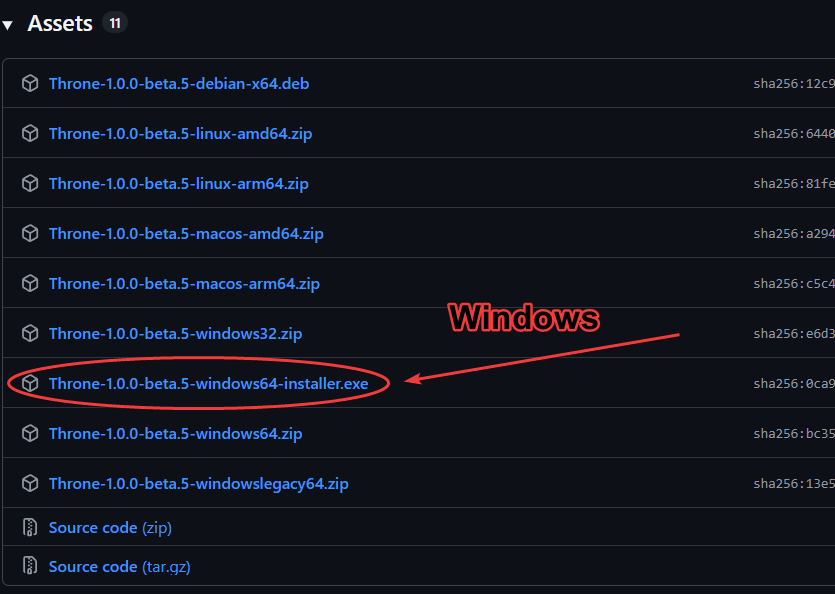
Install the latest release for your OS.
Download:
Releases page on GitHub — always holds the newest version.
Direct link: Windows installer, version 1.2.3 (if a newer version is out, grab the file from the releases page above).Which file you need: Windows — the one ending with windows-universal-installer.exe; Linux — linux-amd64.zip or the debian-amd64.deb package; macOS — macos-arm64.zip (Apple Silicon) or macos-amd64.zip (Intel).
Run the program according to your OS.
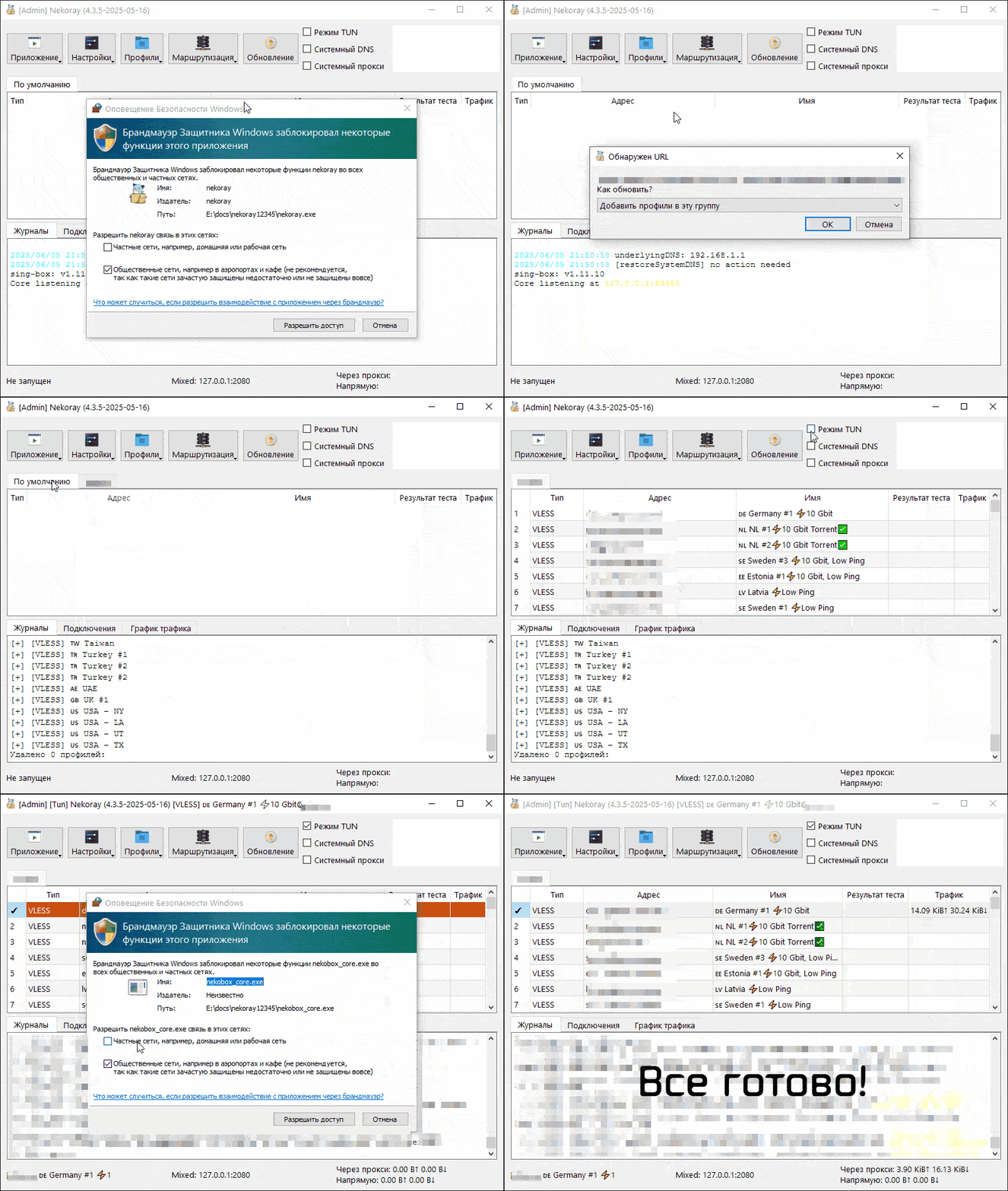
Important! Launch with administrator rights (required for VPN mode).
If the firewall window appears, then we must issue permits for the private and public network.Copy the subscription, in the menu “Application” → “Add a profile from the clipboard” → “Create a new group of subscriptions” → ok. Next, with the right button on the “Default” tab and remove the selected group. In the upper right corner, select “TUN mode”, then “with the RMB click on the desired server” → “Start”.
These steps are displayed on GIF below:
Notes:
In the Windows firewall window (If you use it) Be sure to put two ticks (private and public network), otherwise the program will not work.
If you need a VPN only for a browser, you can choose a mode “System proxy”. Important! After disconnecting, it is necessary to remove the checkmark from “System proxy”, otherwise the Internet will not work.
If you have problems with the connection, open “Settings” → “Routing settings” → “DNS” and replace the Direct DNS value with one of the addresses below. They are listed in order of preference — go from top to bottom until the connection is stable.
https://185.222.222.222/dns-queryhttps://45.11.45.11/dns-query223.5.5.5119.29.29.2977.88.8.8
If changing the DNS did not help, open “Settings” → “TUN Settings” → “stack” and switch the value to
gvisor.If the antivirus DRWEB is installed, then for the program it is necessary to add a folder, Throne.exe and Core.exe in the exception of antivirus. Also, the Throne program needs to be added to trusted applications.
Split tunneling: Whitelist
Selected programs through VPN, everything else without VPN
Before setting, make sure that VPN works!
Open Settings → Routing Settings → tab Route. Click on New.
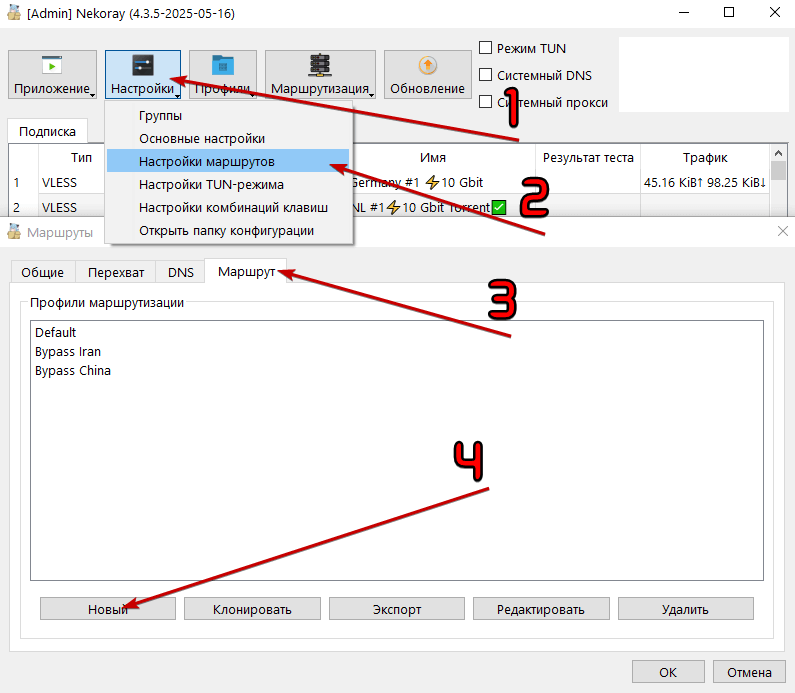
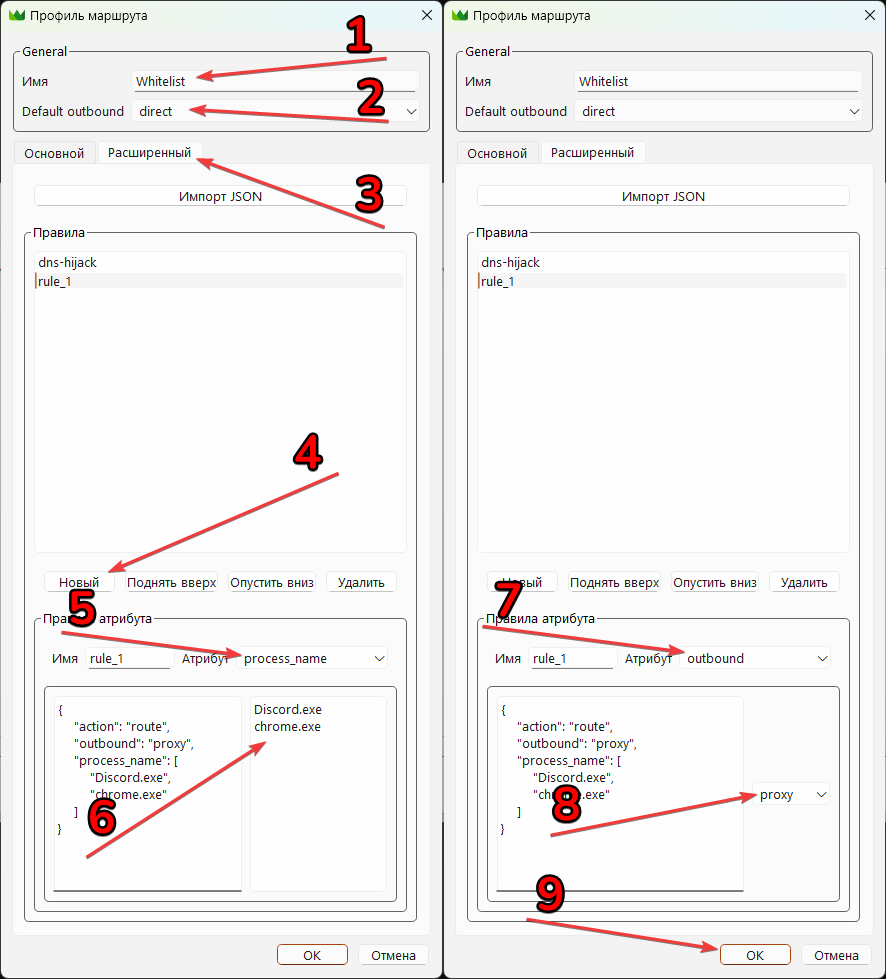
In the window that opens: Name: type any profile name → Default outbound: direct → go to the Advanced tab → click New → pick Attribute: process_name → in the bottom-right field list the processes you want to route through the VPN, one per line → pick Attribute: outbound → set the value to proxy → click OK twice.
Return to Main screen. Click Routing and select Profile we just created. Now you can connect.
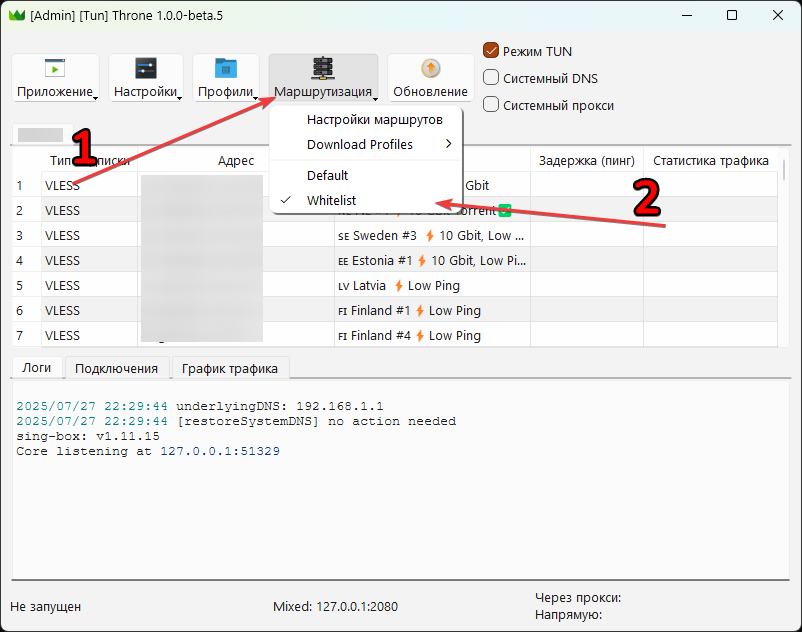
Split tunneling: Blacklist
All through VPN, except for selected programs
Before setting, make sure that VPN works!
Open Settings → Routing Settings → tab Route. Click on New.
In the window that opens: Name: type any profile name → Default outbound: proxy → go to the Advanced tab → click New → pick Attribute: process_name → in the bottom-right field list the processes you want to keep outside the VPN, one per line → pick Attribute: outbound → set the value to direct → click OK twice.
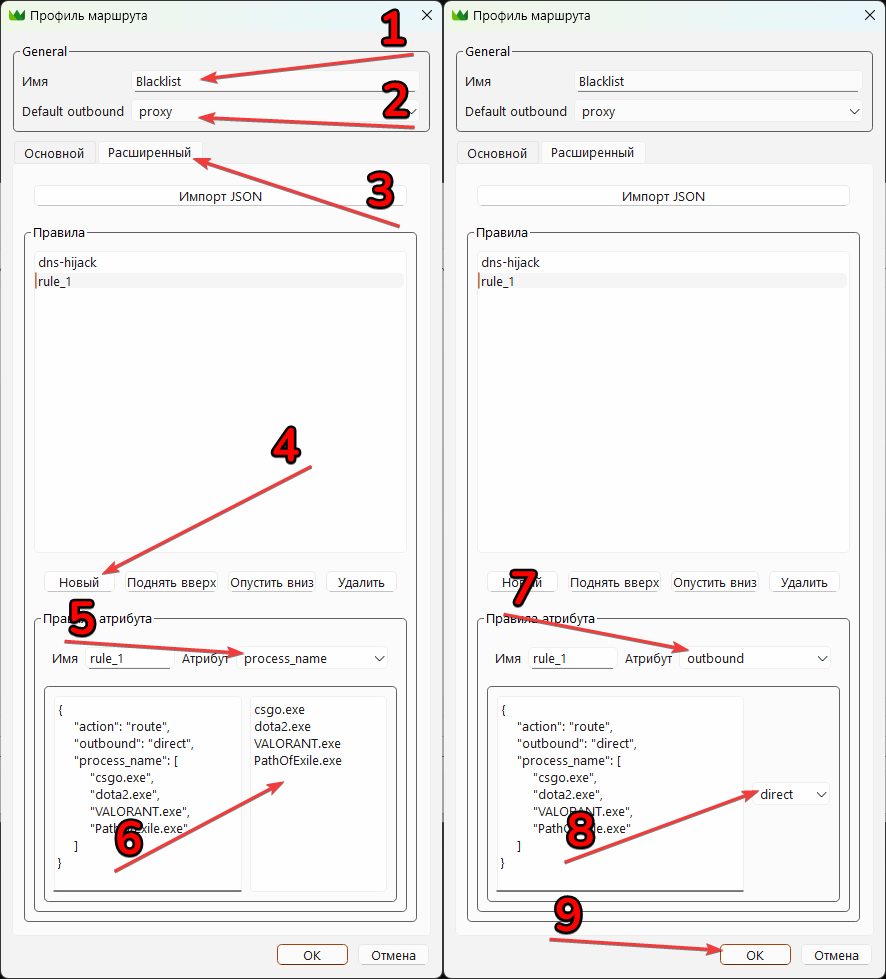
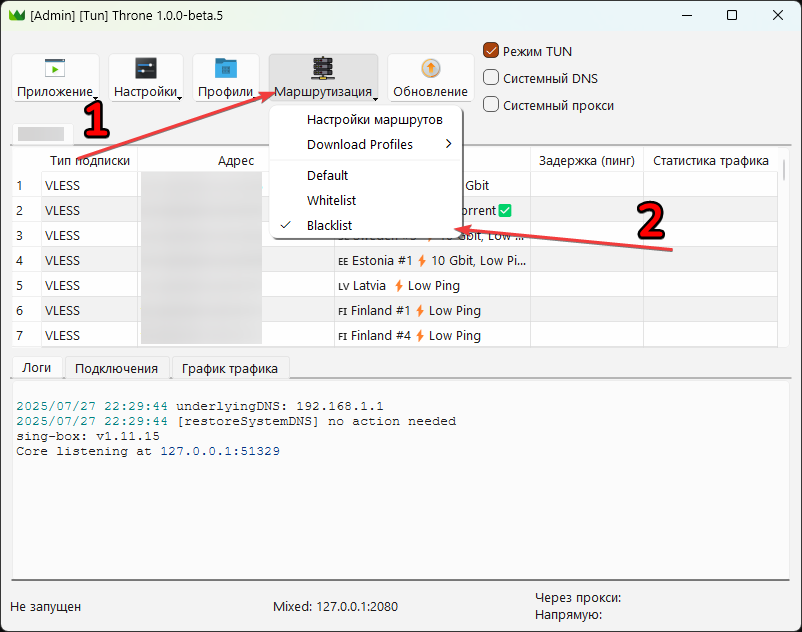
Return to Main screen. Click Routing and select Profile we just created. Now you can connect.
🍏 iOS, MacOS
Happ (recommended)
Download:
App Store (Global)
With a Russian Apple ID the app page most likely won’t open — the app is not listed in the Russian App Store. Either sign in with an account from another country, or install INCY (section below), which is available in the Russian App Store as well.
Install it only via the link above: App Store search also returns unrelated apps with similar names. The developer of the real Happ is Flyfrog LLC.
Copy the received subscription and further according to the instructions:
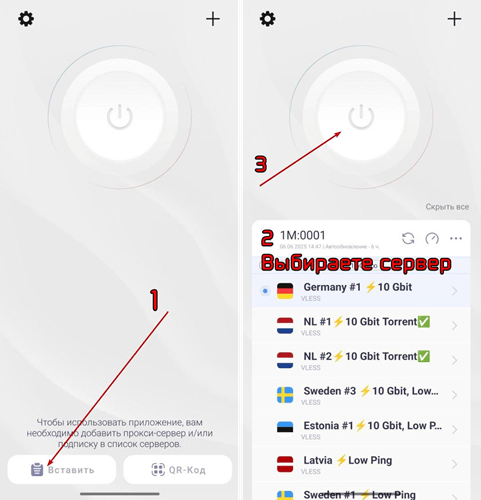
INCY
Download:
App Store
A simple client for iPhone and iPad. Available in the Russian App Store too — use it if Happ cannot be installed.
- Copy the subscription you received.
- Open the app.
- Paste the subscription link into the add field.
- Allow adding the VPN configuration — iOS shows a system prompt, confirm it with your passcode or Face ID.
- Pick a server and connect.
Streisand
Download:
App Store
Copy the received subscription and further according to the instructions:
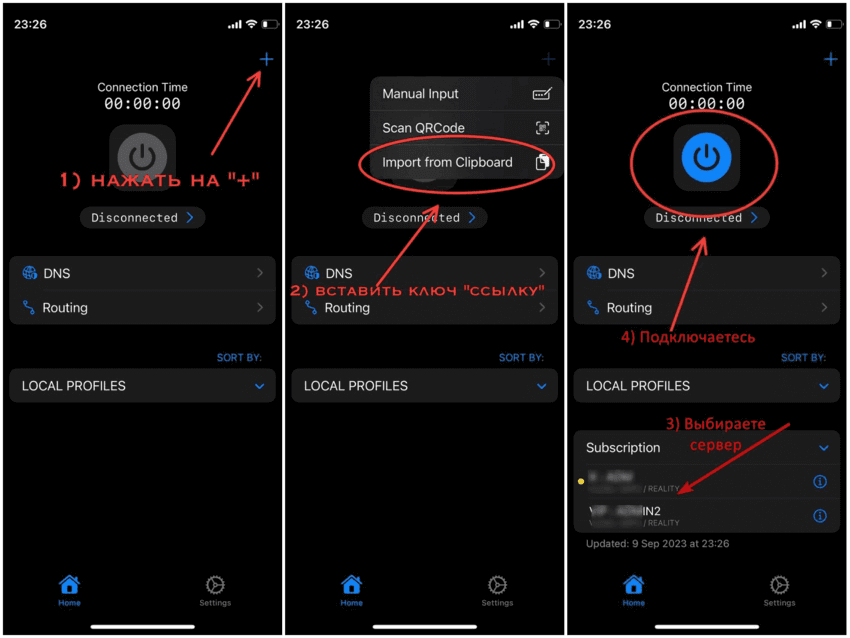
Karing
Fallback option: install Karing only if the other clients did not work out (for example, macOS older than 13 on Intel processors).
For MacOS there is an alternative to GitHub according to the Throne instructions for Win 10/11, just download the DMG package.
Download: App Store
- Copy the received subscription
- Launch the application and accept the agreement
- Select the language and press the button Next
- The country or the region will automatically choose the right one, click Next
- Templates (Rules): We recommend leaving the default, again click Next
- Leave the beginner’s mode on, click the button Ready
- On the “Add Profile” screen, select Import from the Clipboard.
- That’s it!
📱 Android
Happ (recommended)
Download: Play Store
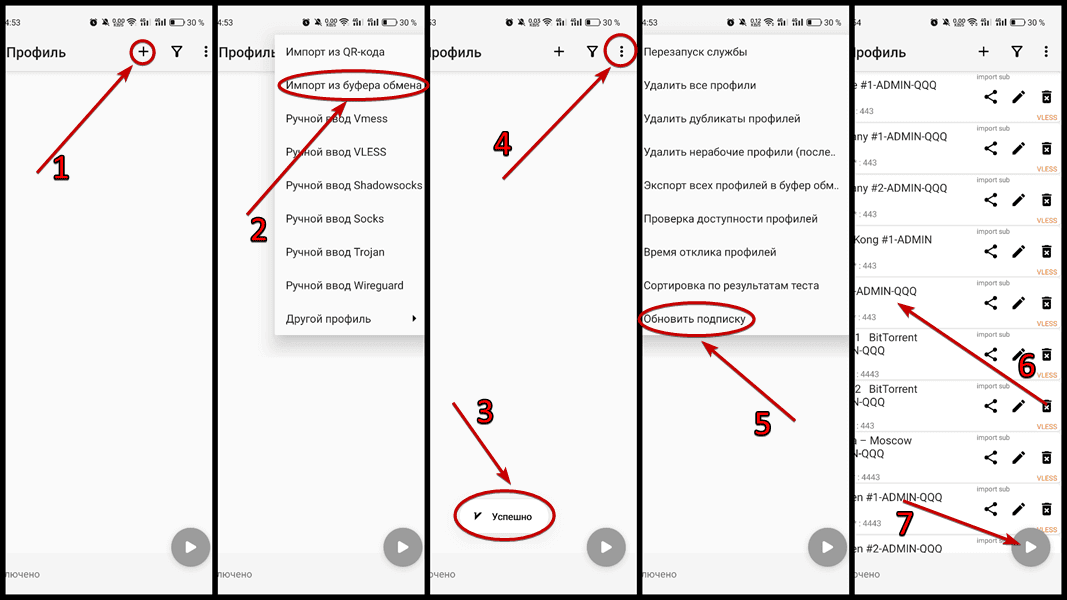
Copy the received subscription and further according to the instructions:
v2rayNG
Download:
Releases page on GitHub
Use GitHub on purpose: the app keeps disappearing from the Play Store in some countries, while the developer’s releases are always available.
For most phones the APK with arm64-v8a in its name is the right one. After downloading, Android will ask you to allow installation from this source — confirm it.
Copy the received subscription and further according to the instructions:
📺 Android TV, Google TV
Happ
Prepare a mobile device with Happ that already has the subscription added.
On TV in Google Play find and install Happ.
If there is no Google Play on TV, then you can download and install APK:
GitHub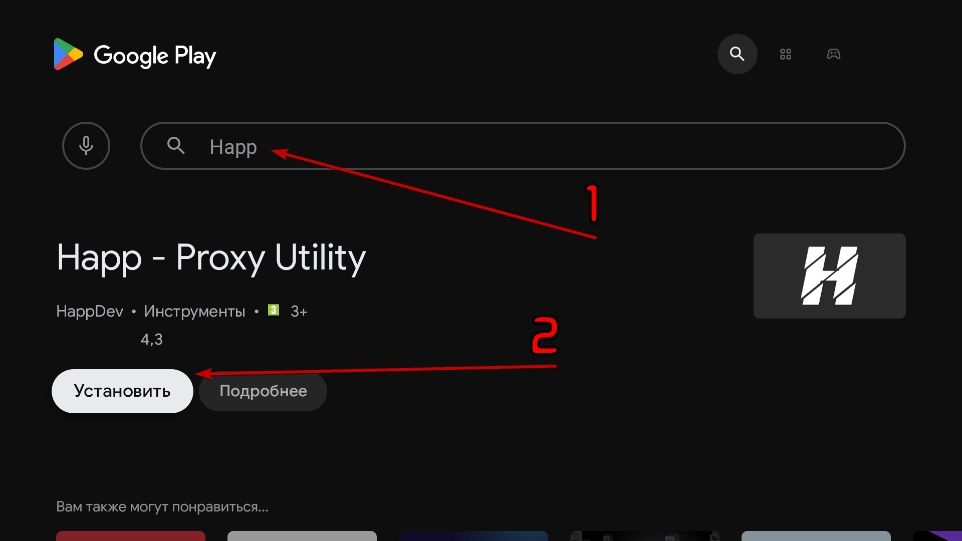
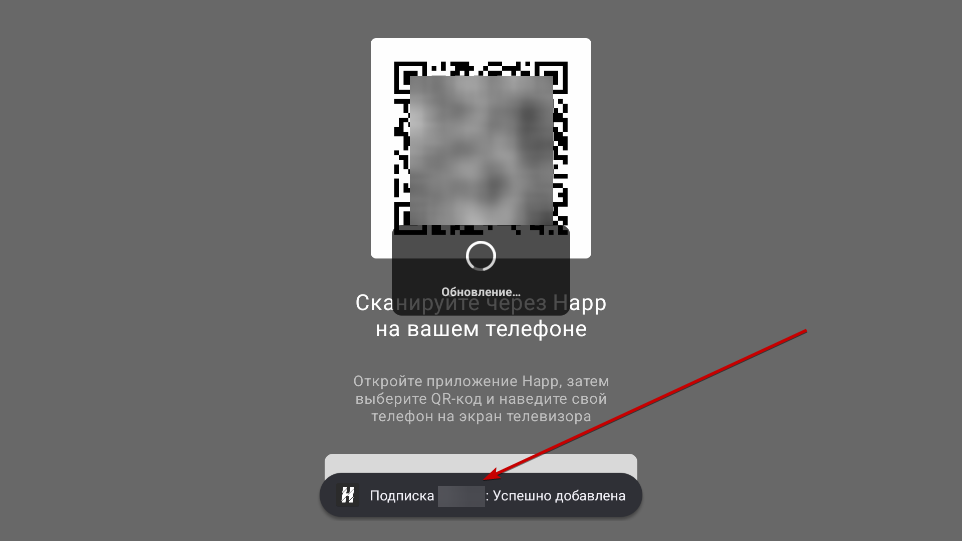
Run the application, a QR code will appear. Next, return to the mobile device.
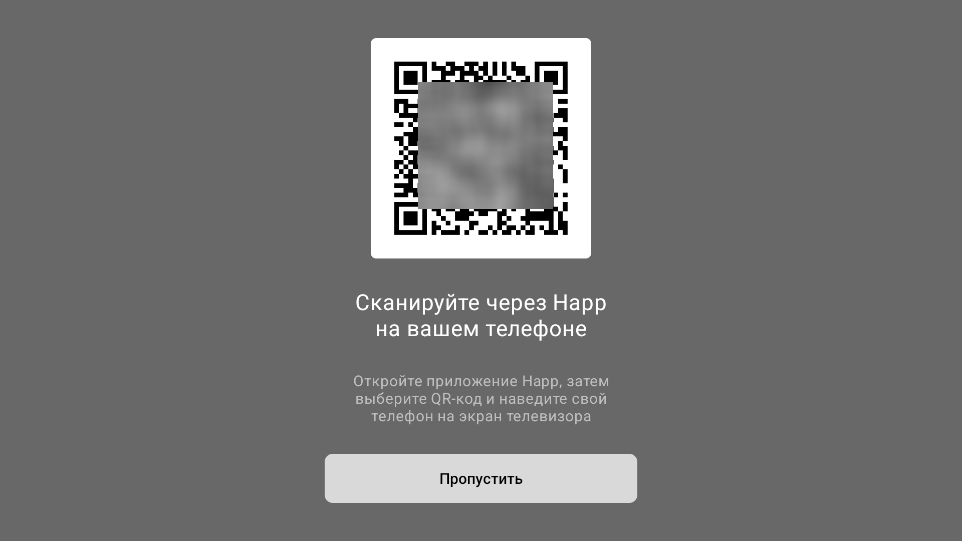
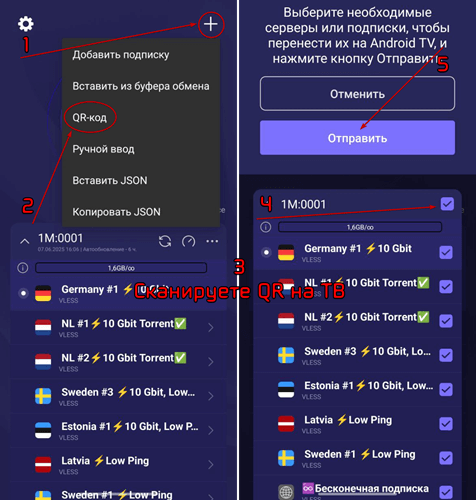
On a mobile device, open Happ → click on “+” in the upper right corner → QR code. Scan the QR code on TV, then select the necessary subscription on the mobile device and click “Send”. If a warning appears, then press Send again.
On TV there should be a message that subscription is successfully added. Then click “Skip”.
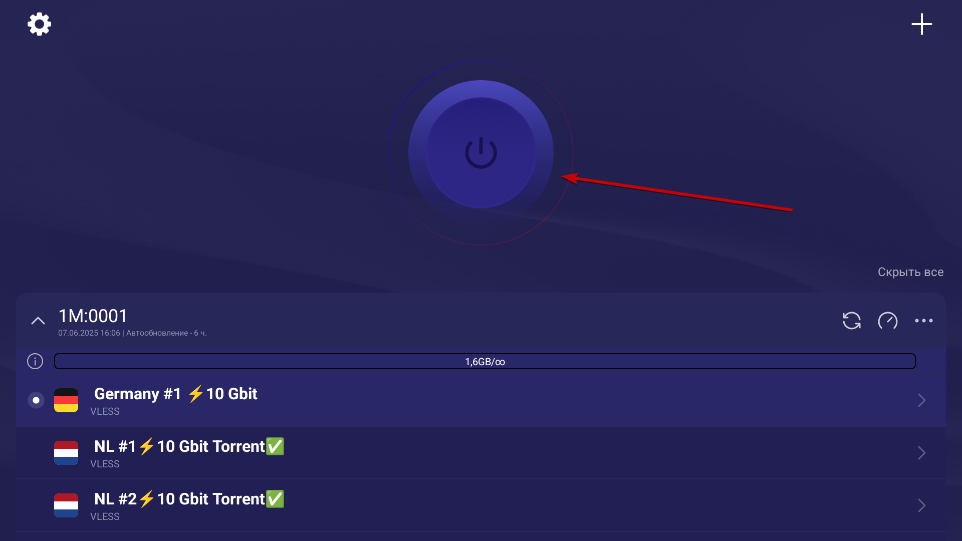
If necessary, select a server and click the “Connect” button.
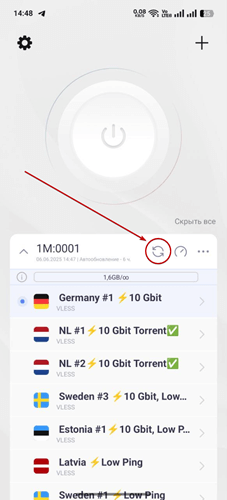
Subscription update
You need to update the subscription whenever the server list changes — for example, when we add new locations. The app re-reads the key-link and pulls the current list.
IMPORTANT: updating the subscription is NOT a payment renewal. It does not change your expiry date.
Happ (iOS, macOS, Android)
- Open the app and go to the list of subscriptions.
- Tap your subscription and choose update — the app reloads the servers.
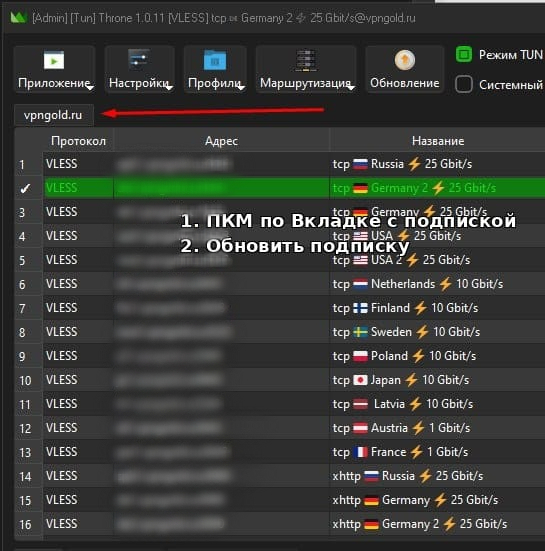
Throne (Windows, Linux)
- Open the “Group” menu (the list of subscription groups).
- Click “Update all subscriptions” — the servers in the group are rewritten with the current ones.
- If you were connected, disconnect and connect again to the server you need.
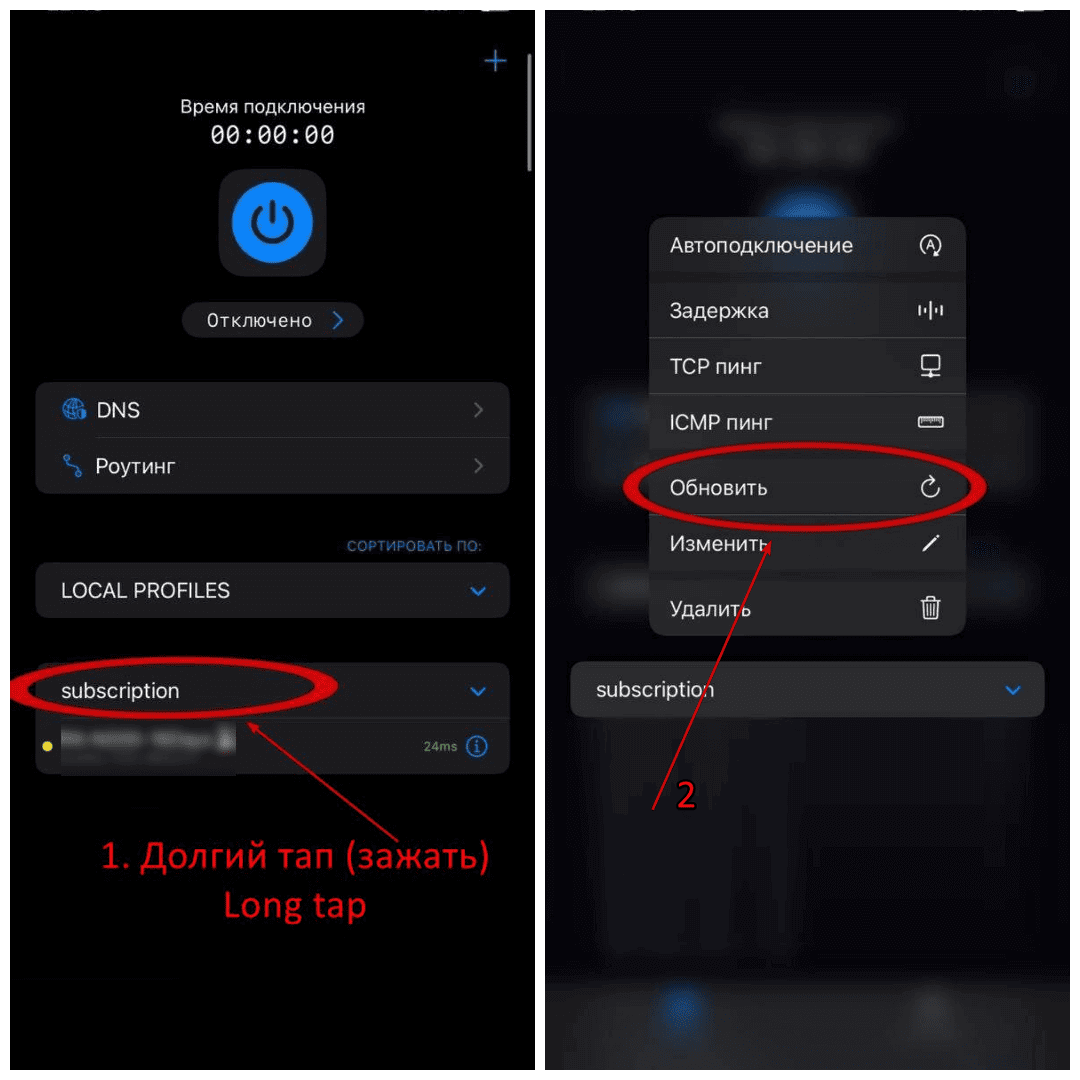
Streisand (iOS, macOS)
- Open the configurations tab.
- Pull the list down (or press the refresh button next to the subscription) — the server list updates.
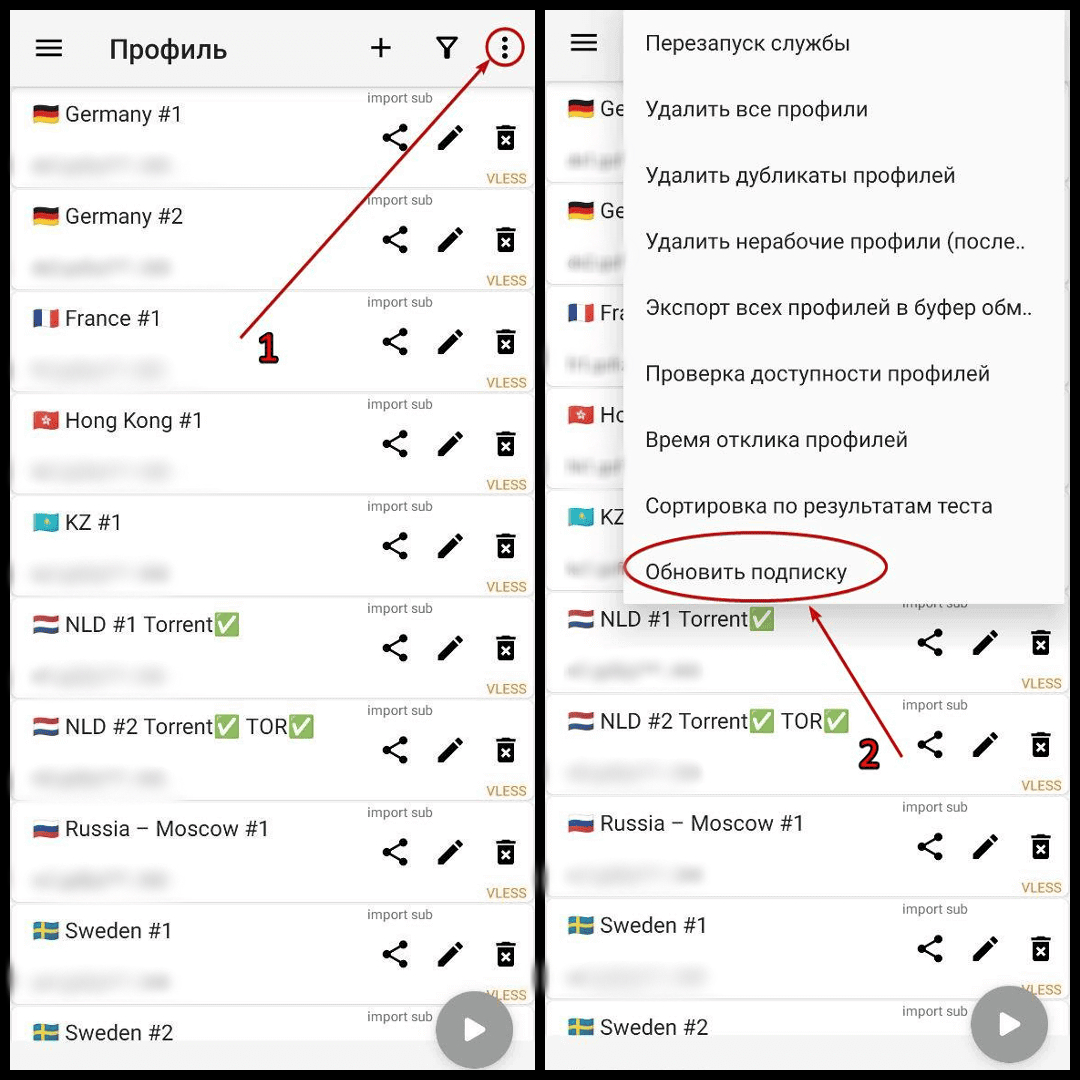
v2rayNG (Android)
- Open the side menu and go to the group/subscription item.
- Run the subscription update — the app reloads the servers from the link.
INCY (iOS)
- Open the app and go to the saved subscription.
- Run the update — the server list is re-read from the key-link.
If the update did not help, delete the subscription and add it again by pasting the same key-link.